

Google Searching and AI Basics for Seniors
Simple ways to search, use AI and build confidence online
Google is no longer just a place where you type a few words and choose from a list of websites. Today, you can search by typing, speaking, using your camera, translating text, searching images, or asking AI to explain something in a simpler way.
This guide is for seniors, carers and anyone who wants to feel more confident using Google and AI on a phone, tablet or computer.
Searching today is more than typing
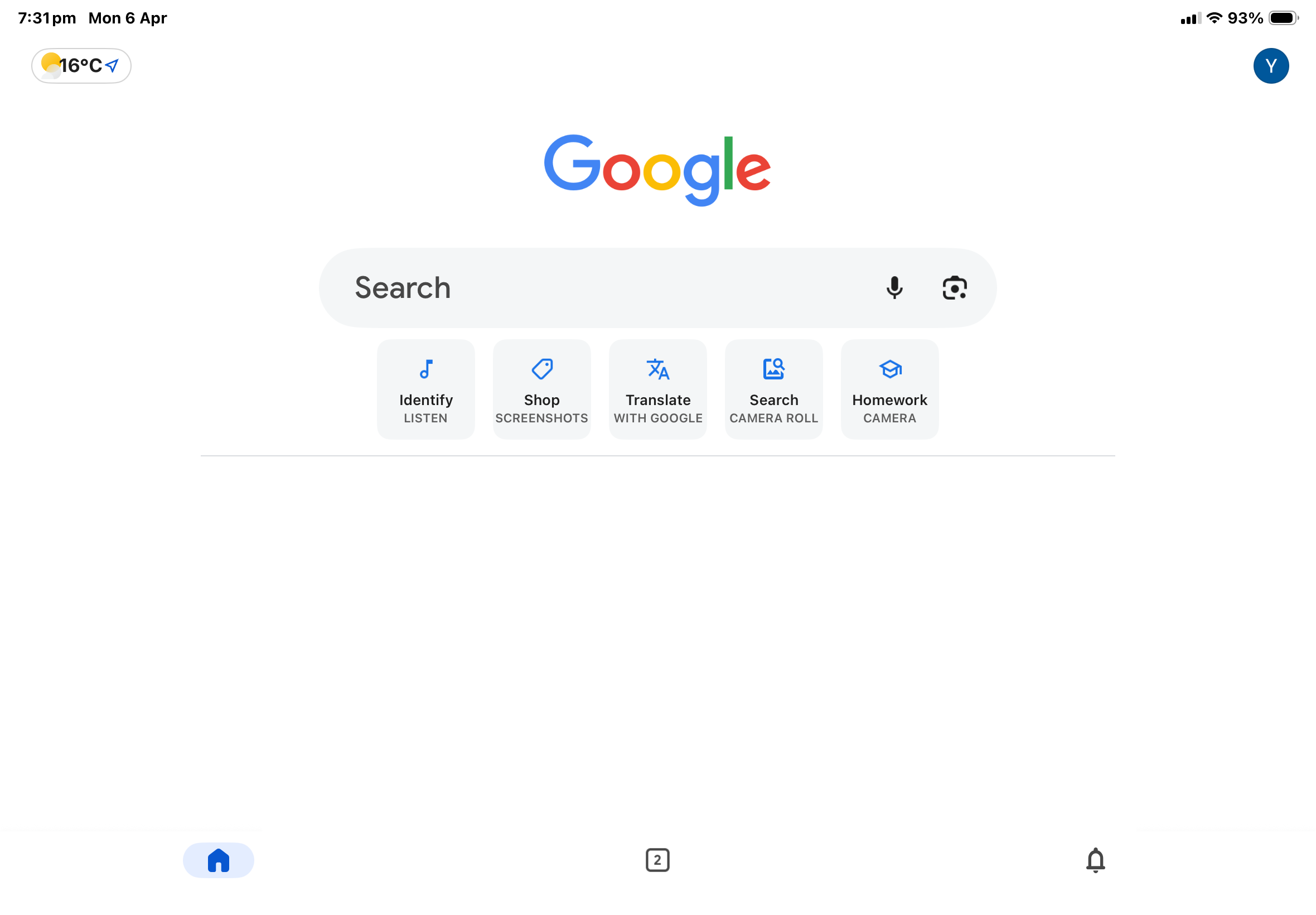
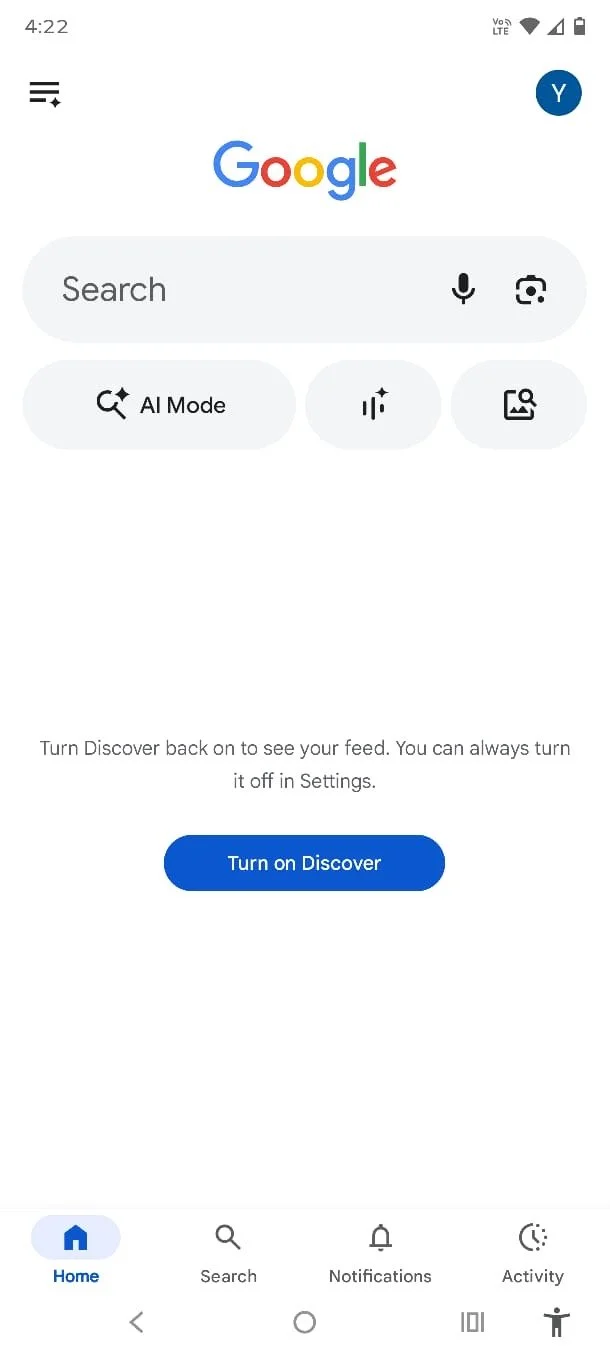
When you use Google on an Apple or Android phone, you may see symbols near the search bar. These symbols give you different ways to search.
Common options include:
Magnifying Symbol / Search - Type a question or topic the way you may be used to.
Microphone - Speak your question instead of typing.
Camera / Google Lens / Images - Search using a photo or your camera, Look for pictures and visual examples.
Translate - Translate signs, menus, text or words
Music search - Identify a song that is playing. May also be hidden behind the microphone.
AI Mode - Google is increasingly adding AI directly into Search through AI Mode and AI Overviews. You may see: a colourful AI symbol, an “AI Mode” option, AI-generated summaries.
Audio AI Mode - You may now see a symbol in some Google AI features that looks like: a few vertical lines, a small waveform. This usually relates to talking with AI instead of typing.
AI Overviews - AI-generated summaries that appear in some search results
Banana / Create icon - Some people are now seeing a small banana or “Create” icon in parts of Google Search, Lens or AI tools.
This relates to Google’s newer AI image creation and editing features, sometimes referred to as “Nano Banana”.
Study or homework help - Break down learning questions, where available. AI Mode is taking over this area though.
You may not see every option on every device like below. Google features can look different depending on your phone, app version, country and settings.
The main skill is not memorising exactly where everything is. It is learning what the symbols usually mean.
What is Google Search?
Google Search helps you find information on the internet.
You can use it to look up:
opening hours
directions
news and weather
recipes
health or government information
local services
“how to” instructions
images and videos
A simple way to think about Google Search is:
Google gives you a list of places to look.
Some results are websites. Some may be videos, maps, images, business listings or summaries.
Tips for better Google searches
Try asking full questions, such as:
“How do I renew my driver licence in NSW?”
“What does this scam message mean on Whatsapp?”
“What time is Woolworths, Coles, Aldi open in Westfield Parramatta”
“How do I change notification settings on my phone?”
If the first answers are not helpful, try changing a few words.
For example:
Instead of: phone not working
Try: iPhone 14 screen too dark how to fix or Samsung Galaxy phone volume too low
The more specific you are, the better the results usually become.
What is Google Lens?
Google Lens lets you search using your camera or a photo. Google Lens can help you search what you see, identify objects, copy or translate text, and learn more about things around you. (Google Lens)
You might use it to:
identify a fruit or vegetable
translate a menu
copy text from a paper document
search for a specific product
learn more about a building or painting
understand a sign in another language
A simple way to explain it is:
If you do not know what something is called, use the camera.
What is AI?
AI stands for Artificial Intelligence.
In simple terms, AI is like a digital assistant that can answer and explain a range of questions and help you think through a task.
A simple way to think about AI is:
Google Search gives you places to look. AI gives you a possible answer or explanation.
AI can be very helpful, but it is not perfect. It can misunderstand your question, leave out important details, or give an answer that is factually incorrect.
What can AI help with?
AI can help you:
explain something in simple language
summarise a long article
write a message or email draft
make a checklist
compare options
ask follow-up questions
understand unfamiliar technology terms
For example, you could ask:
“Explain how to make cheesecake in simple step by step instructions.”
“Help me write a birthday message to a friend and translate it into Spanish”
“Summarise this information into the most important key points.”
Where AI appears in Google
Google now includes AI features in Search. AI Overviews provide an AI-generated snapshot with links to explore further, while AI Mode allows more conversational searching and follow-up questions. (Google Help)
You may see:
AI Overview — a summary near the top of some search results
AI Mode — a more conversational search experience
Follow-up questions — suggestions to keep exploring
Google Lens — search using your camera or image
Translate — translate text, signs or menus
Music search — identify a song by listening or humming, where available (blog.google)
You will not see these features every time on every device. That is normal.
Google Search vs AI: what is the difference?
Google Search
Gives you a list of results
Good for comparing sources
Lets you choose websites
Useful for official information
AI
Gives you a direct answer or summary
Good for quick explanations
Lets you ask follow-up questions
Useful for simplifying information
Online safety and using AI
Be extra careful when the topic is:
health
medicine
financial
laws and regulations
government payments
personal safety
passwords or accounts
anything urgent or emotional
For important topics, use trusted sources such as government websites, your bank’s official website, your doctor, or a trusted organisation.
Tip: If using AI, always ask it to provide sources for the information and check those.
Do not put private information into AI tools, such as:
passwords
Medicare numbers
banking details
full address
date of birth
private family details
copies of identity documents
Sharing information safely
Before sharing something you found through Google or AI, pause and ask:
Where did this come from?
Does it sound too dramatic or urgent?
Is it from a trusted source?
Could it be outdated or misleading?
Have I checked it with another trusted source, friend or family member first?
A simple practice activity
Try these low-pressure activities:
Use the microphone to ask for tomorrow’s weather.
Use Google Lens to identify a plant or object.
Search images for a place you would like to visit.
Ask AI to explain a recipe and the ingredients needed, and then translate it.
Use Google Search to check the answer from another source.
The aim is not to get everything perfect. The aim is to build confidence by trying.
Final tip: learn the symbols, not just the steps
Technology changes often. Buttons move. Apps update. Screens may look different on Apple and Android phones.
Once you understand the symbols, you can use them across many apps — not just Google.